SERVFORU

Latest Post
Showing posts with label Mint Linux. Show all posts

10 Things to Do after installing Linux Mint 15 olivia KDE

I just installed Linux Mint 15 KDE desktop ,its really awesome,

Here is some tips for the newbies

1.Keyboard Shortcuts for the KDE Desktop


2. update the system


 sudo apt-get update

sudo apt-get upgrade

3. Make LibreOffice look great
The menu-bar of Libreoffice looks ugly under KDE. But there is an easy way to fix it.
1. Remove libreoffice-kde4 packages
2. install kde-gtk-config
3. install gtk3-engine-oxygen
Now, go to desktop settings > application appearance > Gtk configuration
Here select oxygen-gtk in both GTK2 and 3 themes. Now, you Gtk apps will look beautiful and KDEfied.


4 Get your Android device working under Linux Mint(KDE)

Independent developers have done an incredible job at bringing Android support to GNU/Linux. In order to be able to connect and access your Android devices from KDE's Dolphin,  search for kio-mtp (select the version of Linux Mint you are running). If the package is still in 'testing/unstable' stage, LInux Mint will ask you to deliberately click on the button 'Show unstable package' so that you are aware of the fact) and then the rest it one-click install.
It will also add and enable that repo where the packages is hosted so you can get future updates automatically. Do the same process for 'libmtp' and once both these packages are installed, reboot your system. Now you can connect and access your Android devices from Linux Mint


Recover Formatted Deleted Data from your hard disk , USB , memory card


Recently I  unknowingly formatted my internal hard disk of laptop , about 500 GB of data lost . I got panic and i searched the ways to recover my data and i found a way using a opensource software called TestDisk , and its working , here is the step by step method

Requirements : Live bootable ubuntu or Linux Mint , i used Linux mint

install the test disk by

$sudo apt-get install testdisk

on terminal


after installing testdisk

go for recovery

1.open terminal
2. $sudo testdisk


3.


Log creation

  • Choose Create to instruct Testdisk to create a log file containing technical information and messages, unless you have a reason to append data to the logor you execute TestDisk from read only media and must create the log elsewhere.
  • Choose None if you do not want messages and details of the process to be written into a log file (useful if for example Testdisk was started from a read-only location).
  • Press Enter to proceed.


4. 

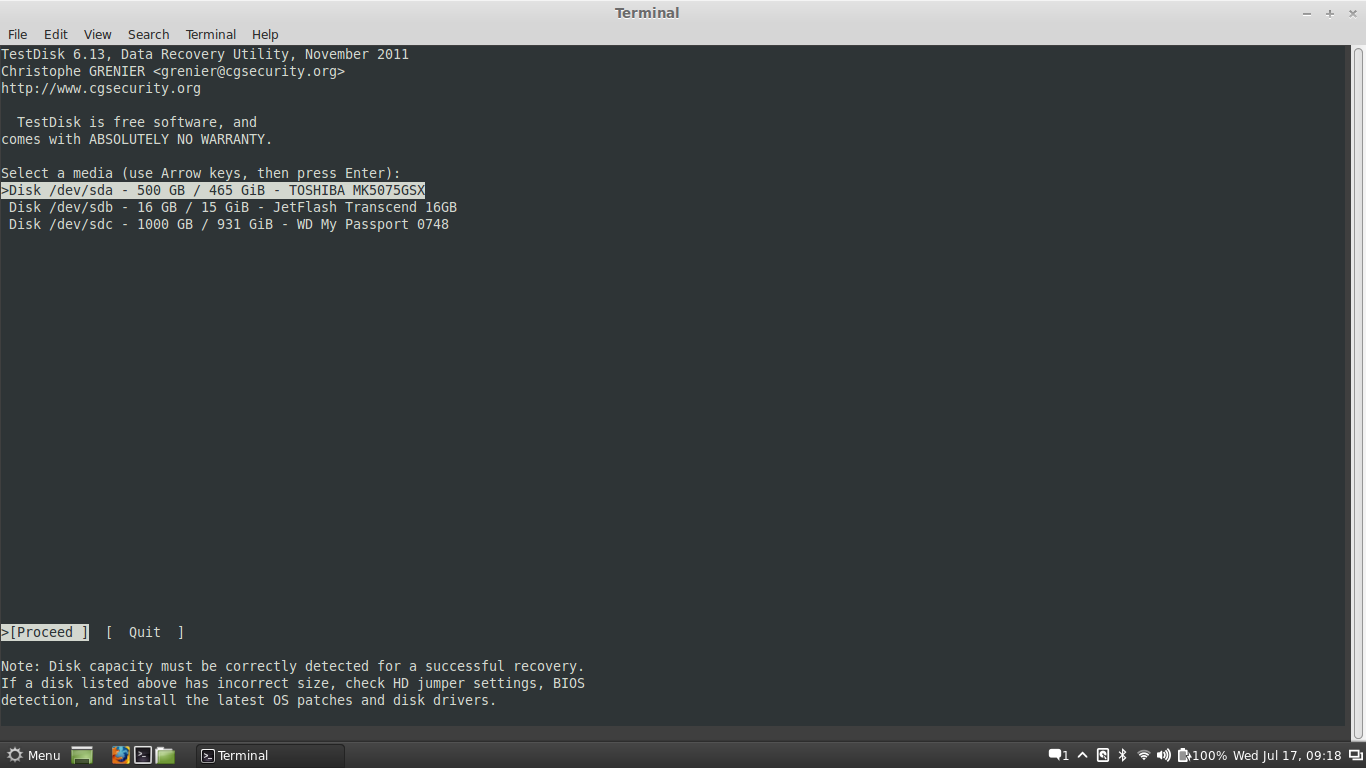
Disk selection


select the hard disk or device to recovered
  • Use up/down arrow keys to select your hard drive with the lost partition/s.
  • Press Enter to Proceed.

5. 

Partition table type selection


  • Select the partition table type - usually the default value is the correct one as TestDisk auto-detects the partition table type.
  • Press Enter to Proceed.

6.

Current partition table status


  • Use the default menu "Analyse" to check your current partition structure and search for lost partitions.
  • Confirm at Analyse with Enter to proceed.
he first partition is listed twice which points to a corrupted partition or an invalid partition table entry.
Invalid NTFS boot points to a faulty NTFS boot sector, so it's a corrupted filesystem.
Only one logical partition (label Partition 2) is available in the extended partition. One logical partition is missing.
  • Confirm at Quick Search to proceed.

Quick Search for partitions

  • Confirm according to your OS and created partitions to proceed.
7.

Save the partition table or search for more partitions?


http://www.cgsecurity.org/wiki/TestDisk_Step_By_Step

http://www.cgsecurity.org/wiki/TestDisk
 

How to install GlomoSim in Linux Mint & Ubuntu & RedHat

In GloMoSim we are building a scalable simulation environment for wireless and wired network systems. It is being designed using the parallel discrete-event simulation capability provided by Parsec. GloMoSim currently supports protocols for a purely wireless network. In the future, we anticipate adding functionality to simulate a wired as well as a hybrid network with both wired and wireless capabilities.

GLomoSIm User Manual is here : http://pcl.cs.ucla.edu/projects/glomosim/GloMoSimManual.html


To install GloMoSim in Ubuntu or Linux Mint

Follow the steps


1) Install Parsec by typing
    sudo apt-get install parsec47
 

3) Change into the glomosim-2.03/glomosim/main
    cd glomosim-2.03/glomosim/main

4) Build by typing:
    ./make

To the set the environment variables edit the .bashrc in your home directory and type for example:
    export PCC_DIRECTORY="/home/mydir"

and save the .bashrc file. Logout and login again then type the following at the command line to make sure the environment variable is set:
    echo $PCC_DIRECTORY
you should see /home/mydir


TO INSTALL ON REDHAT OR OTHER DISTROS

  • Uncompress glomosim-2.03.tar.gz file
$tar -xzvf glomosim-2.03.tar.gz

  • Set Environment variable
$ gedit ~/.bashrc

Then add following lines

PCC_DIRECTORY=GloMoSim_ROOT/glomosim-2.03/parsec/redhat-7.2
export PCC_DIRECTORY


  • Copy both files pcc and parsecc from glomosim-2.03/parsec/redhat-7.2/bin/ dir and copy into usr/bin dir
$ sudo cp glomosim-2.03/parsec/redhat-7.2/bin/pcc glomosim-2.03/parsec/redhat-7.2/bin/parsecc usr/bin


  • Goto glomosim-2.03/glomosim/main dir and run make.
$ cd glomosim-2.03/glomosim/main
$ make
 

Implementation of Leach Protocol NS2

This is  only the steps  to install and run the LEACH protocol on version 2.27 of ns2 .The LEACH implementation was written as a stand-alone application. Thus, in the past a version compiled for LEACH may or may not work for other protocols. In addition, the original version of LEACH was compiled for version 2.5b which is an outdated version of ns2.

Setup Procedure

1. Obtain the ns-allinone-2.27.tar.gz package. This can be found at:
http://www.internetworkflow.com/downloads/ns2leach/ns-allinone-2.27.tar.gz
 
2. Unpackage the archive
 
gunzip ns-allinone-2.27.tar.gz 
tar xvf ns-allinone-2.27.tar

3. Change directory to ns-allinone-2.27
 
cd ns-allinone-2.27

4. run the install script
./install

5. Add the appropriate environment variables as specified at the end of installation.

7. Place the mit.tar.gz package into the ns-allinone-2.27/ns-2.27 directory.
 

8. Change directory to ns-allinone-2.27/ns-2.27
 
9. Unpackage the archive which will overwrite all appropriate files and set up symbolic links.
gunzip mit.tar.gz
tar xvf mit.tar
 
10. A sample make file can be found at http://www.internetworkflow.com/downloads/ns2leach/Makefile. Edit the Makefile as follows:

Add DMIT_uAMPS to the DEFINE list
Add I./mit/rca I./mit/uAMPS to the INCLUDE list
Add the following just prior to the line gaf/gaf.o \
mit/rca/energy.o mit/rca/rcagent.o \
mit/rca/rca-ll.o mit/rca/resource.o \
mac/mac-sensor-timers.o mac/mac-sensor.o mit/uAMPS/bsagent.o \

 
11. Clean up previous build
make clean
 
12. Rebuild ns2 this can take a while so I recommend redirecting output, running in background and going to lunch.
 
nohup make 2>error.log >make.log &
 
13. Test default wireless demo and LEACH
 
./test
 
14. Validate the full installation this takes a while too so take a break
 
nohup ./validate-full 2>validate.error >validate.log &


How to install NS3 in Linux Mint & Ubuntu


ns-3 is a discrete-event network simulator for Internet systems, targeted primarily for research and educational use. ns-3 is free software, licensed under the GNU GPLv2 license, and is publicly available for research, development, and use. 
Take a look to how to install NS3 in ubuntu or Linux Mint 


To install NS in Linux 
 Requirements
  •   ubuntu 10.10 or higher
  •  an internet conenction
if you have both  follow the simple steps 

   1. open the Terminal
   2.First update the Ubuntu repos:
$sudo apt-get update

After this install the following packages 

$ sudo apt-get install gcc g++ python


$ sudo apt-get install gcc g++ python python-dev
$ sudo apt-get install mercurial

$ sudo apt-get install bzr


$ sudo apt-get install gdb valgrind

$ sudo apt-get install gsl-bin libgsl0-dev libgsl0ldbl


$ sudo apt-get install flex bison

$ sudo apt-get install gcc

$ sudo apt-get install g++

$ sudo apt-get install tcpdump
$ sudo apt-get install sqlite sqlite3 libsqlite3-dev


$ sudo apt-get install libxml2 libxml2-dev
$ sudo apt-get install libgtk2.0-0 libgtk2.0-dev
$ sudo apt-get install vtun lxc

$ sudo apt-get install uncrustify

$ sudo apt-get install doxygen graphviz imagemagick
$ sudo apt-get install texlive texlive-pdf texlive-latex-extra texlive generic-extra texlive-generic-recommended

$ sudo apt-get install python-pygraphviz python-kiwi python-pygoocanvas libgoocanvas-dev

Then make a directory 

$ mkdir ns                                                 //(you can use of different name for ns)
$ cd ns                                                     // (with this command you can enter to your directory)
$ wget https://www.nsnam.org/release/ns-allinone-3.15.tar.bz2   //(if this command doesn’t work you can download and copy it into directory)
$ tar xjf ns-allinone-3.15.tar.bz2                     //(with this command you can extract directory)
$ cd ns-allinone-3.15-RC1
$ ./build.py
$ cd ns-3.15-RC1
$ ./waf configure

$ ./waf

Simulate your networks and enjoy...........
 

Install MPLAB in Linux Mint & Ubuntu


MPLAB® X IDE is a software program that runs on a PC (Windows®, Mac OS®, Linux®) to develop applications for Microchip microcontrollers and digital signal controllers. It is called an Integrated Development Environment (IDE), because it provides a single integrated “environment” to develop code for embedded microcontrollers.
MPLAB® X Integrated Development Environment brings many changes to the PIC® microcontroller development tool chain. Unlike previous versions of MPLAB® which were developed completely in-house, MPLAB® X is based on the open source NetBeans IDE from Oracle. Taking this path has allowed us to add many frequently requested features very quickly and easily while also providing us with a much more extensible architecture to bring you even more new features in the future.

Download MPLAB from microchips website link is here : http://www.microchip.com/pagehandler/en-us/family/mplabx/#downloads


Before installing MPLAB , should install java if java is not installed
to install java check : INSTALL   JAVA

then follow the steps

1. open Linux Terminal
2. change the permisions of the files that downloaded by executing the commands

chmod 755 mplabc18.bin

chmod 755 mplabx-ide-beta60-linux-32-bit-installer.bin

chmod 755 picc-18-pro-linux.run

chmod 755 picc-pro-linux.run


3. enter the following command

sudo ./MPLABX-V1_30-linux-installer.run
An installer will launch. Follow the prompts through. Nothing special here.

HI-TECH for PIC16

sudo ./picc-18-pro-linux.run


Install XAMPP in Linux Mint

To install XAMPP in Linux Mint just download XAMPP and follow the steps below

 Download Xampp From here http://sourceforge.net/projects/xampp/files/LAMPP/0.9.4/

Go to Terminal and login as admin by the command
               $su 
Extract the downloaded archive file to /opt:


$tar xvfz xampp-linux-1.8.0.tar.gz -C /opt


To start XAMPP simply call this command:
/opt/lampp/lampp start


WiFi Not Working In Ubuntu ? Troubleshoot yourself

After deleting the Windows and installing ubuntu ,may be some drivers get disabled , to activate this back in ubuntu or in Linux mint we can use the following steps

1. open the Terminal
2. check the status of the hardware devices by using the command rfkill list
              $sudo rfkill list

3. you can see whether it blocked by hardware or software  if it is blocked by hardware or software you can unblock it by using the the command rfkill unblock
               $sudo rfkill unblock 0: phy:0


You can block or unblock all wireless devices by hard block or by soft block


5 Things Do After installing Linux Mint

1. Software Update 
    select the update manager from
       Menu  >> Administration >> Update Manager

you can also do it with terminal  sudo apt-get update && sudo apt-get upgrade  

2.
Change the search engines of Firefox
To change the search engine in the search box of Firefox to Google, you just need to open Firefox then go to the following address:
 http://www.linuxmint.com/searchengine_google.php  


After that, click on the drop down list in the search box and select "Add Google"


To change the search engine of the address bar from DuckDuckGo to Google, you open Firefox , type about:config on the address bar. You will see a warning, just click on the "I'll be careful" button to go to the config page. In this config page, scroll down until you find the line that begins with "keyword.URL":


Right click on this line and select the Modify option. The box to edit the search engine will appear, in this box, you just need to replace the DuckDuckGo url with Google:
 http://www.google.com/search?q=  

Click ok .  Now both the address bar and the search box use Google as the default search engine.
3. Install new Themes and Icons 
 The best place to look for nice themes and icons in my opinion is Gnome-look . And get the themes and icons . Also remember to read the installation instruction of each theme and icon set.
 a conky setup
 
Install Conky in Ubuntu/Linux Mint open terminal (Press Ctrl+Alt+T) and copy the following commands in the Terminal:                 
 sudo apt-get install conky conky-all
If gadget doesn't adjust in your screen, you can change size in line 40, 41. Enter Following command to open file in text editor and change size:
                               sudo gedit ~/.conkyrc
5.Install Compiz Config Settings Manager
Compiz is an awesome tool, you can do a lot of cool things with it so I recommend everybody to install Compiz. You can tweak a lot of things with CCSM and of course, it is always fun to show the cubic desktops to your friends :D
To install Compiz, you can search for it in the Software Manager or run the following command:
 sudo apt-get install compizconfig-settings-manager  

6.Install Wine
I myself at times need to run some Windows applications so Wine is always a must-have tool for me. To install Wine, you can search for it in the Software Manager or use this command:
 sudo apt-get install wine  


Support : Ebin EPhrem | Ebin Ephrem | #Gabbarism
Copyright © 2011. Services | Embedded Support | Reviews | Virtual Technologys - All Rights Reserved
Template Created by ebinephrem.com Published by Ebin Ephrem
Proudly powered by Blogger